
MicrocosmWorks디지털 코스모스 혁신 및 설계
소개연락처
MicrocosmWorks디지털 코스모스를 혁신하고 설계합니다

중요한 IT 솔루션을 제공합니다. 기술, 보안에 열정적이며 신뢰할 수 있는 혁신적인 IT 인프라를 통해 비즈니스 성장을 돕습니다.

[email protected]
+91 7011868196
New Delhi, India

AI 성장 허브

AI 허브스타트업 혁신기업 가속기

솔루션

모든 솔루션웰니스 및 피트니스 앱AI 비디오 플랫폼AI 에이전트 개발

자원

통찰력산업 가이드사용 사례 청사진아키텍처 패턴사례 연구

회사

회사 소개연락처우리의 작업

서비스

디지털 컨설팅클라우드 인프라SaaS 개발AI 개발비디오 기술
ERP 개발Zoho 맞춤화Odoo 개발Salesforce 통합맞춤형 CRM 개발
QuickBooks 통합IoT 솔루션블록체인 개발
사이버 보안 컨설팅IT 지원 - L3

© 2026 MicrocosmWorks. 모든 권리 보유.

개인정보 처리방침서비스 약관
통찰로 돌아가기
Cloud Solutions

Export Service vs. Video Editor Pipeline

Comparing a standalone export service against an in-editor render pipeline, and when each approach pays off.

Rahul Mainwal.webpRahul Mainwal
•
August 19, 2026
•
수정일 August 20, 2026
•
5 min read
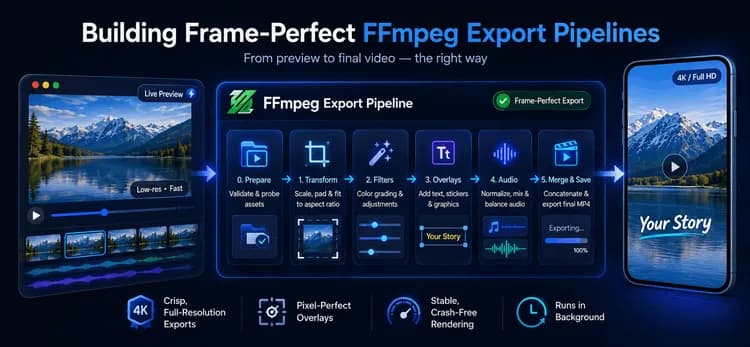
Frame-perfect FFmpeg export pipeline showing the workflow from live video preview through preparation, transformation, filters, overlays, audio mixing, and final MP4 export.
5 min read

A common trap for developers building video editors is treating the "Export" button like a save action for the live preview. A live preview is a low-resolution GPU approximation built strictly for real-time speed. Trying to capture or record that screen view results in blurry files, misaligned overlays, and silent crashes on low-end devices. 

Exporting is a completely separate system—a deterministic pipeline that rebuilds video frame-perfectly from raw source files. In this guide, you will learn how to structure an enterprise-grade export pipeline using FFmpeg. By understanding these architectural principles, you can deliver crisp, full-resolution video exports without freezing your application UI. 

The Architecture: Preview vs Export Pipeline 

To build a reliable media engine, you must separate interactive viewing from export compilation. The editor trades frame accuracy for speed, rendering low-resolution GPU passes so touch interactions feel responsive. The export pipeline trades instant speed for accuracy, processing every frame strictly through an encoder to write a permanent .mp4 file.  

Parameter Live Editor (Preview) Export Service (Pipeline) 
Goal Look good fast (60 FPS) Be correct and final 
Execution Interactive on UI thread Headless background process 
Resolution Canvas size (e.g., 360p) Full resolution (1080p / 4K) 
Frame Handling Drops frames for UI speed Encodes every single frame 

Treating the export engine as an isolated architecture provides four distinct technical capabilities: 

  1. Guaranteed Order: Operations execute in a strict linear sequence. 
  2. Honest Progress: Track progress accurately using completed frame counts rather than fake timers. 
  3. Error Isolation: Pinpoint exact stage failures when media processing breaks. 
  4. Asset Reuse: Apply uniform processing rules across all incoming source clips. 

The 6-Stage Export Pipeline Breakdown 

A production export service routes raw media clips through a distinct six-stage workflow: 

Architecture Flow Diagram 

Raw Clips ➔ Stage 0: Prepare ➔ Stage 1: Transform ➔ Stage 2: Filters ➔ Stage 3: Overlays ➔ Stage 4: Audio ➔ Stage 5: Merge ➔ Final MP4 


Stage 0 (Prepare): Validate project assets, generate working temporary directories, and probe true media durations using ffprobe. 

Stage 1 (Transform): Scale and pad source media into destination aspect ratios (e.g., 1080×1920) while enforcing even pixel dimensions. 

Stage 2 (Filters): Bake color adjustments, contrast tweaks, or 3D LUT presets directly into video frames at full quality. 

Stage 3 (Overlays): Render text or stickers to transparent PNGs, positioning them via fractional coordinates relative to output size (x = fraction * exportWidth). 

Stage 4 (Audio): Normalize sample rates (48kHz), adjust gain levels, and mix separate background music tracks with clip audio. 

Stage 5 (Merge & Save): Concatenate all transformed media segments into a unified container and move the final MP4 to permanent storage. 

Hands-On FFmpeg Commands for Each Pipeline Stage 

Stage 0 & 1: Trimming, Scaling, and Padding 

Always place seek flags (-ss, -to) before input paths for fast seeking. Force even frame dimensions and universal yuv420p pixel formats to ensure device compatibility. 

Example config for scaling and letterboxing: 

ffmpeg -ss 00:00:03 -to 00:00:09 -i clip.mp4 \ 
-vf "scale=1080:1920:force_original_aspect_ratio=decrease,\ 
pad=1080:1920:(ow-iw)/2:(oh-ih)/2:0xD3D3D3" \ 
-c:v libx264 -crf 23 -preset medium -pix_fmt yuv420p out.mp4 


Stage 2 & 3: Color Grading and Fractional Overlays 

Apply color equalizer filters and position graphic overlays using screen fractions (y = H * 0.9) with timeline display range rules (between(t,2,5)). 

Example config for color adjustment and graphic overlay: 

ffmpeg -i video.mp4 -i caption.png \ 
-filter_complex "[0:v]eq=contrast=1.1:saturation=1.2[bg];\ 
[bg][1:v]overlay=x=(W-w)/2:y=H*0.9:enable='between(t,2,5)'[v]" \ 
-map "[v]" -c:v libx264 -pix_fmt yuv420p with_caption.mp4 


Stage 4, 5, & Single-Pass Optimization 

Combine transform, overlay, and audio mixing operations into a single -filter_complex execution pass to avoid unnecessary quality loss from intermediate re-encoding. 

Example config for a complete single-pass export pipeline: 

ffmpeg -i clip.mp4 -i caption.png -i music.mp3 \ 
-filter_complex "\ 
[0:v]scale=1080:1920:force_original_aspect_ratio=decrease,\ 
pad=1080:1920:(ow-iw)/2:(oh-ih)/2:0xD3D3D3,\ 
eq=contrast=1.1[bg];\ 
[bg][1:v]overlay=x=(W-w)/2:y=H*0.9:enable='between(t,2,5)'[v];\ 
[0:a]volume=0.6[a0];[2:a]volume=0.9[a1];\ 
[a0][a1]amix=inputs=2:duration=first[aout]" \ 
-map "[v]" -map "[aout]" \ 
-c:v libx264 -crf 23 -preset medium -pix_fmt yuv420p \ 
-c:a aac -b:a 192k -movflags +faststart -y clip_final.mp4 


Once individual clips share matching frame rates, aspect ratios, and codecs, merge them instantly using the concat demuxer without re-encoding: 

Example config for stream concatenation: 

ffmpeg -f concat -safe 0 -i files.txt -c copy final.mp4  

5 Pipeline Realities The Live Editor Ignores 

When writing application code to invoke FFmpeg binaries, your pipeline must address five edge cases: 

  1. Absolute Determinism: Eliminates dropped frames to produce identical output files across repetitive executions. 
  2. Headless Execution: Processes media cleanly in background threads without requiring screen rendering focus. 
  3. Codec Constraints: Handles strict encoding rules like even pixel boundary dimensions (e.g., truncating odd widths). 
  4. Job Cancellation & Cleanup: Prevents storage bloat by removing intermediate temporary files and handling user cancelations with grace. 
  5. Real Progress Telemetry: Parses FFmpeg -progress pipe:1 statistics (out_time_ms) to drive accurate progress bars rather than estimates. 

Real-world context / example 

At MicrocosmWorks, we helped a video editing platform resolve frequent export crashes, memory leaks, and misaligned captions on mobile devices. Their original architecture attempted to record canvas frames straight from the live UI preview. 

We replaced this approach with an isolated background FFmpeg pipeline. By converting hardcoded pixel coordinates to normalized fractional vectors, enforcing strict color space conversions, and decoupling encoding from the main UI thread, we eliminated export failures entirely. Users could minimize the application while their videos compiled seamlessly in the background. 

Conclusion 

A video preview is a lightweight sketch, while an export pipeline is the final painting. Building your export service as an isolated, multi-stage FFmpeg pipeline guarantees frame-perfect quality, deterministic asset alignment, and crash-free rendering performance across every device. 

Designing scalable media infrastructure and robust automated processing pipelines is a core focus of our engineering work at MicrocosmWorks. 


Building a video editor and hitting export crashes, blurry renders, or frame drift?
That's almost always an architecture problem, not an FFmpeg problem. Our engineering team at MicrocosmWorks builds production-grade video and media pipelines — from headless export services to adaptive streaming and OTT delivery — so your app ships frame-perfect video without freezing the UI. Get in touch to talk through your export architecture, or see how we've solved this for other teams in our work.


Other Blogs

1. Optimizing Channel Logo for Different Video Resolutions 

2. Snap a Plate, Log a Meal: A Computer-Vision Nutrition Pipeline

3. Optimizing Channel Logo for Different Video Resolutions


Video ExportArchitectureRenderingPipeline
Rahul Mainwal.webp

저자 소개

Rahul Mainwal

AI & Cloud Solutions Expert at MicrocosmWorks

Building innovative AI-powered solutions and helping businesses transform through cutting-edge technology.

더 자세히 알고 싶으신가요?

비즈니스를 위한 이러한 솔루션 구현 방법에 대해 문의하세요.

연락하기

자주 묻는 질문

A separate FFmpeg export pipeline processes every frame at full resolution, avoiding the quality and reliability limitations of real-time GPU previews.

The pipeline parses FFmpeg's -progress pipe:1 output, using out_time_ms to calculate real processing progress instead of relying on estimated timers.

Running FFmpeg as a headless background process isolates encoding from the application's UI thread, allowing exports to continue without blocking the user interface.

Comments (0)

Share your thoughts and join the conversation

Leave a Comment

Your email will not be published

No comments yet

Be the first to share your thoughts!